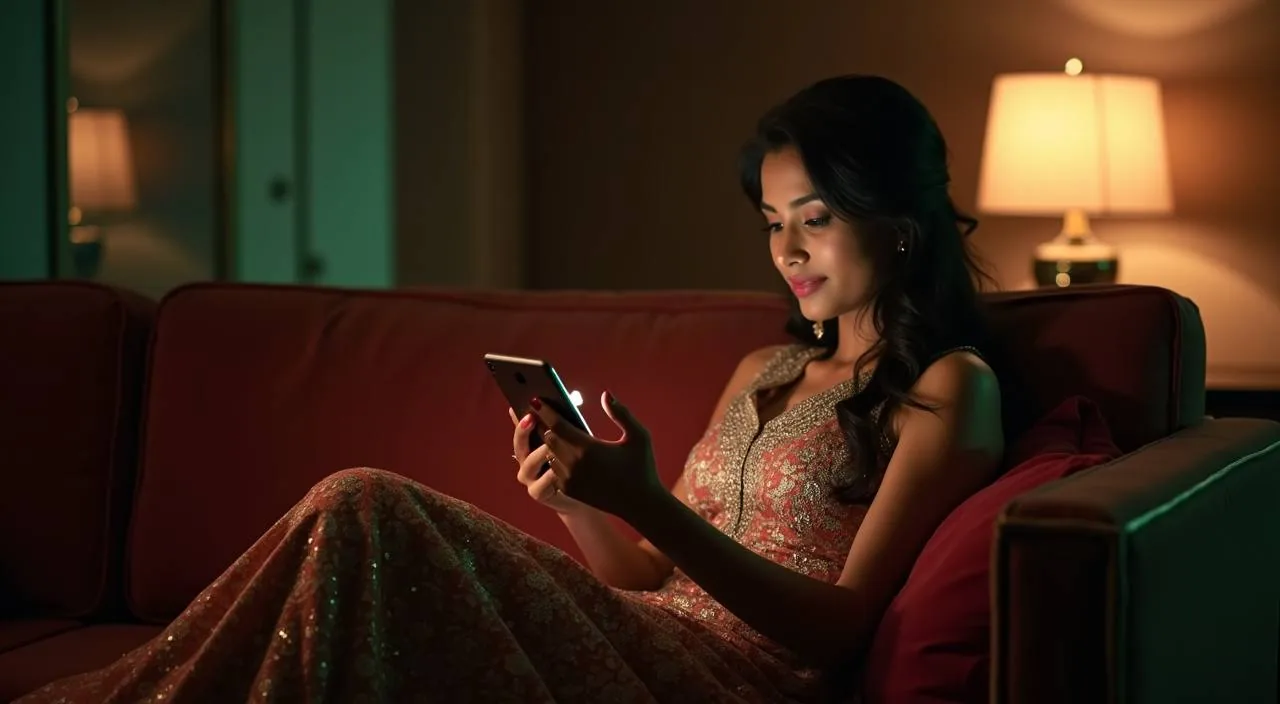
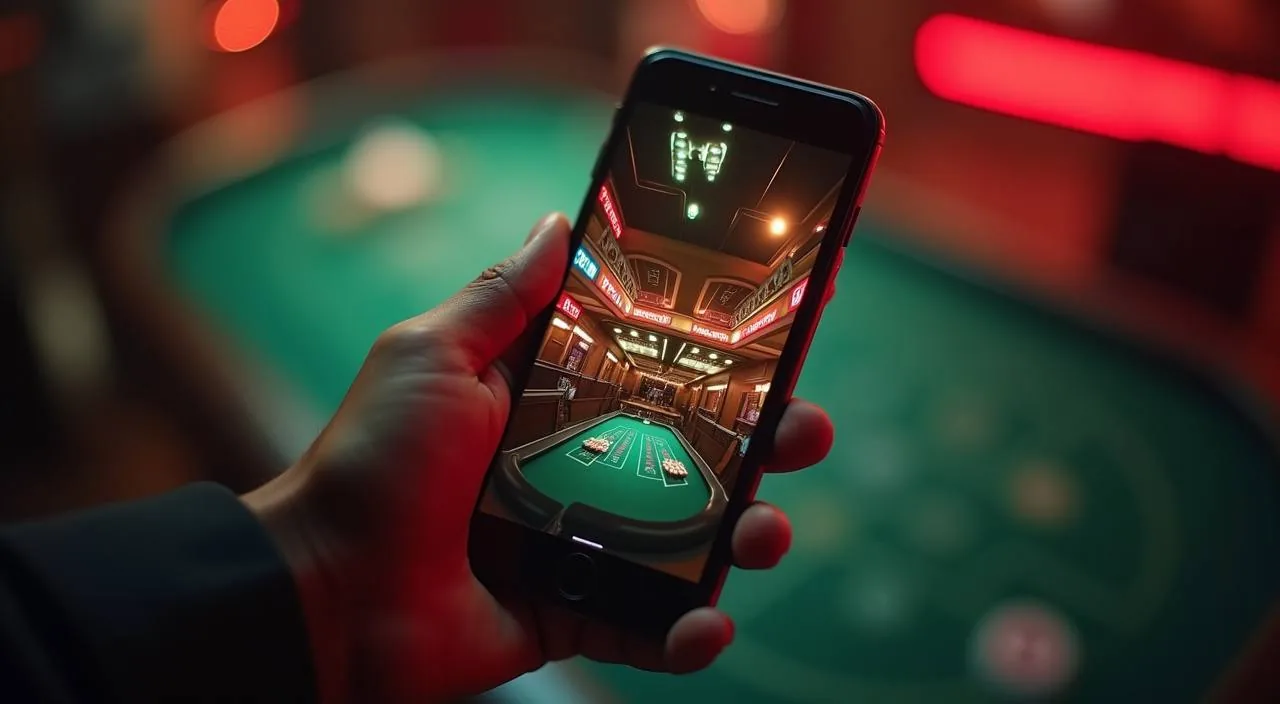
bd622 on Your Phone — Browser-Ready, No Download Required
Your bd622 account loads directly in your mobile browser — open the site, sign in, and reach the lobby from any Android or iOS device. Access depends on your local law and eligible regions.
When you open bd622 on a phone or tablet, the layout shifts to fit your screen automatically. Navigation sits at the bottom of the page so your thumb reaches it without stretching. From there you can move between the slots lobby — where titles from Pragmatic Play, PG Soft and CQ9 are listed — the live casino section, and the sportsbook that covers cricket markets including BPL and international fixtures. Your account menu is one tap away: check your wallet balance, review transaction records, and reach the help section without switching to a desktop.
BROWSER FEATURES
Mobile Web Access Features on bd622
The bd622 mobile site is built around four visible behaviours you can check the moment you open it on your phone.
Responsive Layout
The page reflows to your screen width without a separate mobile URL. Menus, game rows and account panels all resize. You can verify this by rotating your device — the layout adjusts in both portrait and landscape without breaking the navigation.
Account Route Access
Your wallet summary, deposit history and withdrawal records are reachable from the account icon in the mobile header. No desktop session is needed to review a transaction or check a pending status — the same account routes are present on every screen size.
Game Discovery Rail
Slots, live tables and crash games load in horizontal scroll rows on mobile. Titles from Spadegaming and Bigtime Gaming appear in the same catalogue view as on desktop. Tap any row item to open the game detail page before launching.
Help Page Access
The support section and published FAQ pages load fully on mobile. If you have a question about your account or a transaction, you can reach the help path from the footer menu without leaving your phone session.
ACCESS STEPS
Mobile Access in 3 Steps
Getting into bd622 on your phone takes three steps and no file download. Start by opening your preferred mobile browser — Chrome and Safari both render the site correctly. Type the current bd622 domain into the address bar and wait for the page to load fully before tapping anything; a slow connection may take a few extra seconds on the first load. Once the homepage appears, tap the sign-in button in the top-right corner and enter your registered account credentials. After authentication, the lobby loads with your wallet balance visible in the header. If you want the site one tap away next time, use your browser's 'Add to Home Screen' option — this places a shortcut on your device without installing a native app. Check the account area for any published native app option if you prefer that route.
Open the Current Site
Type the bd622 domain into your mobile browser address bar. Confirm you are on the correct domain before entering any account details.
Check Browser Compatibility
Chrome, Safari and most modern Android browsers load the site without issues. If a page element does not render, try clearing your browser cache or switching to an updated browser version.
Sign In Securely
Enter your registered email and password on the login screen. Use a private or secure network when signing in, and avoid shared or public Wi-Fi for account access.
Add a Home Screen Shortcut
Use your browser's share or menu option to add bd622 to your home screen. This is a browser shortcut, not a native app install — it opens the site directly without going through an app store.
DEVICE CHECKLIST
Browser and Device Compatibility at bd622
Before you open the lobby on a new device, run through these compatibility points to avoid a broken session.
Browser Version
Use an up-to-date version of Chrome, Firefox, Safari or Edge. Older browser versions may not render the game lobby or account panels correctly. Check your browser's settings menu to confirm you are on a recent release.
Screen Layout
The site is designed for screens from small phones up to tablets. Very small screens below 320px width may clip some navigation elements. Most current Android and iOS devices fall well within the supported range.
Account Requirements
A registered and verified bd622 account is required before you can access the wallet or game lobby on mobile. If your account is pending verification, complete the steps shown in your account dashboard first.
Currently Supported Devices
For the current list of confirmed supported devices and any known browser exceptions, check the device guidance page published in the help section. That page reflects the most recent compatibility information we have available.
Region Eligibility
Access to the bd622 mobile site depends on your local law and eligible region. If the site does not load or shows a region notice, that reflects the current availability status for your location.
MOBILE HELP PATHS
Help for Mobile Account Access
If something does not load correctly on your phone, these are the published routes to reach us.
Live Chat
The live chat button appears on the main site and loads on mobile browsers. Open it from the help icon in the footer menu. Describe your device and browser version when you start the chat so the support team can check your specific access issue faster.
Help Centre Pages
The published help articles cover account login, browser troubleshooting and wallet access steps. These pages load fully on mobile. Search for your issue by keyword or browse the account and access category directly from the help section.
Account Recovery Path
If you cannot sign in on mobile, use the password reset link on the login page. The reset email arrives at your registered address. Follow the link from your phone's email app — it opens the reset form in your mobile browser without needing a desktop.
ACCESS TRUST CHECKS
Keeping Your Mobile Session Secure
Four checks worth doing every time you open bd622 on a new device or network.
Verify the Domain
Before entering your credentials, confirm the address bar shows the correct bd622 domain with a valid HTTPS connection. Phishing pages often use similar-looking URLs. If the domain looks different from what you bookmarked, close the tab and navigate fresh.
Review Published Device Guidance
The help section publishes device and browser guidance when compatibility changes. Check that page if you notice a layout issue after a browser update — it is the authoritative source for current access requirements, not third-party sites.
Protect Account Credentials
Do not save your bd622 password in a shared browser profile or on a device other people use. Use your browser's private mode on shared phones. If you suspect your credentials were exposed, change your password immediately from the account security page.
Use the Published Recovery Path
Account recovery goes through the official reset link on the login page only. We do not send unsolicited SMS or email asking for your password. If you receive such a message, do not click it — report it through the live chat support route instead.
APP QUESTIONS
bd622 App — Common Questions Answered
Questions we hear most from members about accessing bd622 on mobile.
Does bd622 have a native app I can download from the Play Store or App Store?
Whether a native app build is currently available is shown in the account area and the help section of the site. We do not confirm app-store listings here because availability can change. Check those published pages for the current status before searching any store.
Can I access my bd622 account on a mobile browser without downloading anything?
Yes. The bd622 site loads in any modern mobile browser without a download. Open the domain in Chrome or Safari, sign in with your account credentials, and the full lobby — including slots, live tables and the sportsbook — is available from your browser session.
Which browsers work with the bd622 mobile site?
Chrome and Safari cover most users. Firefox and Edge also load the site correctly on current versions. If you experience a display issue, update your browser first, then clear the cache. The help section lists any known browser exceptions for the current site version.
How do I add bd622 to my phone's home screen?
Open the site in your mobile browser, then use the browser's share menu and select 'Add to Home Screen'. This creates a shortcut icon on your device. It opens the site directly in your browser — it is not a native app install and does not go through an app store.
I cannot sign in on my phone. What should I do?
First confirm you are on the correct bd622 domain with an HTTPS connection. If your password is not working, use the reset link on the login page — the reset email opens a form in your mobile browser. If the issue continues, reach the live chat support from the help icon in the site footer.
Does the bd622 mobile site show my full transaction history and wallet balance?
Yes. Your wallet balance and transaction records are accessible from the account menu on mobile, the same as on desktop. Tap the account icon after signing in to see your current balance, recent deposits and withdrawal history without switching to a larger screen.
 App / Casino